
A collective textbook-guide by Colaboratoria
Web scraping

- Vasily VinogradovAuthor
Data is omnipresent: it constitutes one of the most significant phenomena of the 21st century. The Internet makes particularly vast volumes of data accessible. However, for this "digital gold" to be utilized effectively, it must first be extracted and processed. This chapter explains what parsing (or scraping) entails and outlines the challenges a beginner analyst may encounter.
/01
HTML Basics
Data permeates every domain—from industry and logistics to marketing and politics. Its widespread availability has rendered information an invaluable resource across all fields. A substantial amount of data resides online, including content from information portals, official organizational websites, and messaging platforms that preserve digital traces of user activity. The Internet encompasses web page content, metrics (such as view and visit counts), and metadata associated with published materials.
HTML (Hypertext Markup Language) is used to render pages in a web browser.
The term "hypertext" refers to electronic text characterized by hyperlinks—elements enabling navigation between documents with a single mouse click.
CSS (Cascading Style Sheets) governs the visual styling of web pages.
CSS employs specific identifiers to apply formatting and styles to elements, facilitating the creation of modern, visually coherent, and aesthetically pleasing websites.
HTML-elements form the foundational building blocks of the language, used to construct document components.
Elements are denoted by special labels known as tags, which follow a general structure: a name enclosed within angle brackets <>. For instance, the tag <div>, signifies a container; subsequent tags belong to this element. To denote its closure, a closing tag is employed, distinguished by a forward slash immediately following the opening bracket. Thus, the end of the container is written as </div>.
Tags may include attributes—additional parameters that modify formatting, functionality, or content. For example, the <a>, which creates hyperlinks, contains the href attribute — the URL of the resource that opens upon clicking.
Example of using the hyperlink tag <a> and tag attributes
<html>
  <body>
    <a href="https://www.mid.ru/"> </a>
  </body>
  <html></html>
</html>
HTML structure is hierarchical: elements "belong" to one another, functioning like nested dolls (matryoshkas). Consequently, they can be categorized as parent and child elements. An element may simultaneously serve as both a parent and a child—it may itself belong to another element while containing other tags within it. In code, hierarchy is indicated through indentation.
Main Tags
HTML extends beyond simple text objects. The modern version of the language supports the creation of lists, tables, images, and videos. For data extraction purposes, it is unnecessary to master all tags; familiarity with the fundamental ones suffices.
<div>
A tag for creating containers
The <div> tag enables the creation of containers. In its unstyled form, <div> does not alter page content. When styling (e.g., size, padding, position, color) is applied, it facilitates the construction of complex web page structures—such as news feeds, navigation menus, and galleries.
The figure below illustrates how <div> is utilized on the website of the Ministry of Foreign Affairs of the Russian Federation to implement the archive of speeches by Foreign Minister S.V. Lavrov.
Example of using <div> on the MFA of Russia website
<p> <span>
Informational tags
Structural tags allow targeting specific nodes for information extraction; however, informational tags must also be understood. Plain text is typically placed within <p> and <span> tags. The <p> tag defines a paragraph of text. Occasionally, text is further wrapped in <span> to apply specific formatting.
<b> <i> <u>
Text formatting tags
There are stylistic elements that change how text looks:
- <b> (bold)
- <i> (italics)
- <u> (underline)
<h> <h1> <h2>
Heading tags
Heading tags establish a multi-level heading system. This group begins with h, followed by a number indicating the heading’s hierarchical level.
Below is an illustration featuring examples of text tags alongside their source code.
Example of text tags
<html>
  <body>
     <h1>Megatrend 1</h1>
     <p>Here is information about <b>megatrend 1</b></p>
     <h2>Megatrend 2</h2>
     <p>Here is information about <i>megatrend 2</i></p>
     <h3>Megatrend 3</h3>
     <p>Here is information about <u>megatrend 3</u></p>
     <h4>Megatrend 4</h4>
     <p>Here is information about <span>megatrend 4</span></p>
  </body>
<html>
<ul> <li> <ol>
Tags for creating lists
An unordered list corresponds to <ul>, with each item marked by <li>. In HTML, lists serve not only to organize information but also to construct web page layouts. Lists are particularly useful for building menus, information panels, and sets of elements.
A numbered list functions identically; simply replace <ul> with <ol>.
A definition list employs distinct syntax. Although uncommon on contemporary websites, it is mentioned here for completeness. It is created using <dl>, with elements marked by two tags: <dt> (for terms) and <dd> (for definitions).
Example of a definition list with source code
<dl>
  <dd>Digital diplomacy</dd>
  <dt>Using the capabilities of the Internet and information technologies to solve diplomatic tasks</dt>
  <dd>Megatrends</dd>
  <dt>Global trends that cover the whole world</dt>
</dl>
<table> <tr> <td>
Table tags
Table extraction constitutes one of the most common scraping tasks. To create a table in HTML, use the tag set <table>, <tr>, <td>. <table> denotes the table object, while <tr> and <td> define its structure—rows and cells, respectively. <td> creates individual cells, and <tr> marks row boundaries, allowing control over the number of rows.
Below is an example of constructing a table, along with a real-world website example.
Example table with source code
<table>
  <thead>
    <tr>
      <th>ID</th>
      <th>Social network name</th>
      <th>Audience</th>
      <th>Year founded</th>
    </tr>
  </thead>
  <tbody>
    <tr>
      <td>1</td>
      <td>Facebook</td>
      <td>2.96 bn</td>
      <td>2004</td>
    </tr>
    <tr>
      <td>3</td>
      <td>Twitter</td>
      <td>540 m</td>
      <td>2006</td>
    </tr>
  </tbody>
</table>
Example of a table on the MFA of Russia website
Class and ID System
To style HTML objects, a system of classes and ids is employed, driven by the practical need to customize elements. Writing individual styles for each element is inefficient; thus, assigning identifiers to tags allows automatic application of predefined styles.
Example of using classes on the MFA of Russia website
A class is a named identifier, whereas an id includes the # symbol preceding the text. Classes and ids (like attributes) are specified after the element name. An id can override styles and properties assigned by a class.
-
- important
An element may possess multiple classes, as well as a combination of classes and an id. However, an element cannot have multiple ids due to the functional constraints of this attribute.
important
An element may possess multiple classes, as well as a combination of classes and an id. However, an element cannot have multiple ids due to the functional constraints of this attribute.
/02
Queries to HTML Elements
We have now mastered basic HTML—understood the principal elements and the operation of classes and ids. One might ask: why is all this necessary? The answer is straightforward: to navigate HTML code and formulate queries for the desired elements.
Queries constitute a vital component of data analytics, enabling retrieval of required information from diverse sources. Web browsers, relied upon by every internet user, send requests to servers to obtain web pages and receive the corresponding page code in response. While browsers are more complex, understanding the nature of a request—and its significance—is paramount.
XPath Syntax
To extract structured data from an HTML page, we must submit a request specifying precisely the information sought.
XPath is a query language designed for selecting elements within XML documents. It permits precise specification of paths to elements, attributes, and text data within the XML structure.
XPath represents a path to an element, reflecting its position within the HTML tree. This enables retrieval of specific portions of the page rather than the entire code.
/html/body/div[1]/div[2]/div[2]/div/div[1]/div[2]/div[1]/ul/li[1]/a — this is an absolute XPath, an address of a specific element.
To simplify, imagine a hypothetical Vasya living in Moscow on Internationalnaya Street in house 2127. It is not enough to know he is "Vasya" — in a large city there may be dozens or hundreds of Vasyas per square kilometer, and we need a specific person.
To refine the query, we provide his address from larger units to smaller ones: Russia / Moscow / Internationalnaya Street / house 2127 / Vasya. This hierarchical sequence lets us select exactly the right Vasya.
This is essentially what XPath does. But you can also select many tags — then the path looks different:
//a[@class='announce__link'] — a relative XPath that selects all elements matching the condition.
/Xpath
Core Syntax Elements
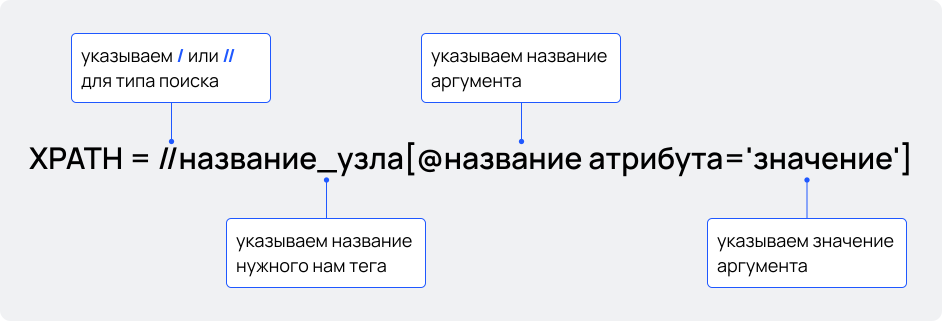
/ — initiates search from the beginning of the web page. Used for absolute paths (exact addresses).
// — searches across the entire page. Enables extraction of groups of elements.
[@arg='value'] — selects elements whose attribute matches the specified value. Note: values are enclosed in single quotes; attributes are enclosed in square brackets.
XPath syntax diagram
/Xpath
Logical Operators
XPath supports logical operators that let you combine element selection conditions.
AND — logical "and"
Selects elements with multiple attribute values. Query: //div[@class='container' AND @class='main'] returns all div elements with classes container and main.
Selects elements with multiple attribute values. Query: //div[@class='container' AND @class='main'] returns all div elements with classes container and main.
OR — logical "or"
Selects elements with different attribute values. Query: //div[@class='container' OR @class='main'] returns all div elements with class container or main.
Selects elements with different attribute values. Query: //div[@class='container' OR @class='main'] returns all div elements with class container or main.
NOT — logical "not"
Excludes elements with specified attributes from results. Query: a[NOT (@id='mid.ru')] removes from the results all hyperlinks leading to the MFA website.
Excludes elements with specified attributes from results. Query: a[NOT (@id='mid.ru')] removes from the results all hyperlinks leading to the MFA website.
/Xpath
Core Functions
Functions help search attribute values via partial matches and keywords, which is very convenient for some sites.
text
Searches by the text value of a tag. Example: to find a heading with value "megatrend": //h1[text ()='megatrend']
Searches by the text value of a tag. Example: to find a heading with value "megatrend": //h1[text ()='megatrend']
contains
Searches by a partial match. Query: //p[contains (text (),'megatrend')] selects all paragraphs whose text includes "megatrend".
Searches by a partial match. Query: //p[contains (text (),'megatrend')] selects all paragraphs whose text includes "megatrend".
starts-with
Searches by the beginning of an attribute value. Useful for extracting elements by class. Query: //div[starts-with (@class,'logo')] selects all containers whose class name starts with "logo".
Searches by the beginning of an attribute value. Useful for extracting elements by class. Query: //div[starts-with (@class,'logo')] selects all containers whose class name starts with "logo".
ends-with
Searches by the end of an attribute value. Query: //div[ends-with (@class,'logo')] selects all containers whose class name ends with "logo".
Searches by the end of an attribute value. Query: //div[ends-with (@class,'logo')] selects all containers whose class name ends with "logo".
XPath Axes Syntax
Additional XPath capabilities include selecting elements based on hierarchy — called axes. To illustrate, consider again Vasya living in Moscow on Internationalnaya Street in house 2127.
Suppose we do not need Vasya himself, but we need his address. We can request all parent nodes of Vasya. From: Russia / Moscow / Internationalnaya Street / house 2127 / Vasya we get: Russia / Moscow / Internationalnaya Street / house 2127— all the elements Vasya belongs to.
If we need only the house, we can request the last parent container and get house 2127.
If we need only the house, we can request the last parent container and get house 2127.
XPath Axes syntax diagram
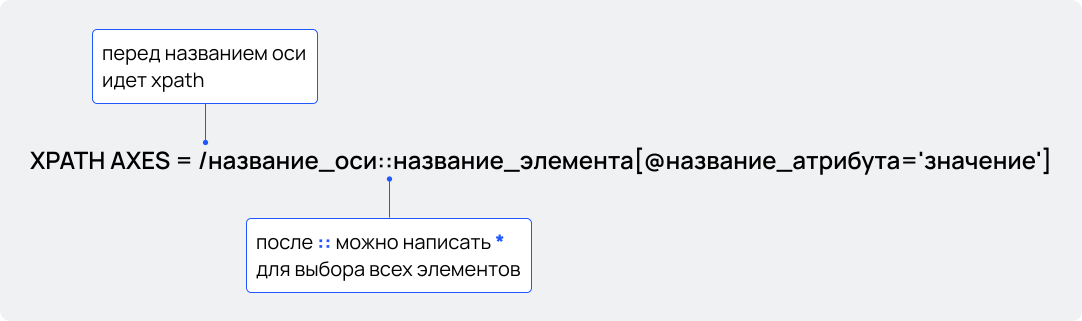
/Xpath Axes
Node Navigation Methods
Below is a closer look at navigating nodes. For simplicity, assume all containers are <div>, and labels are id values. Red indicates the current node, green indicates nodes selected by an XPath axis.
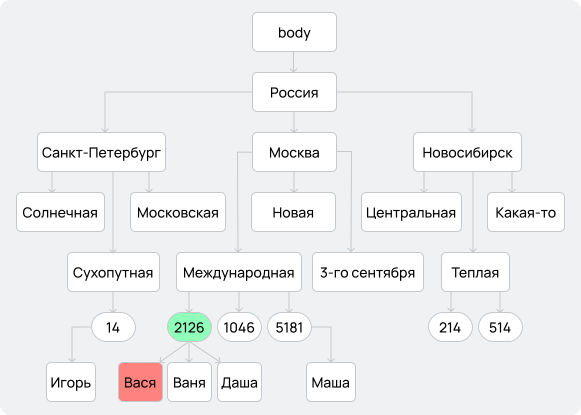
Выбирает родительский узел по отношению к текущему: //div[@id='Вася']/parent::*
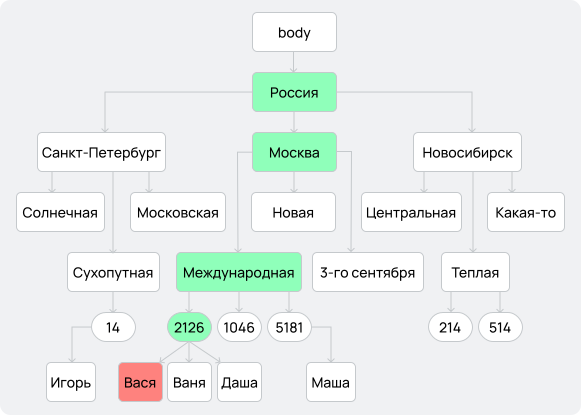
Выбирает всех предков выбранного узла: //div[@id='Вася']/ancestor:*.
Вместо * можно указать уточнение для выбора конкретных элементов, например: //div[@id='Вася']/ancestor:div[@id='Москва'], тогда будет выбран только один контейнер с id «Москва»
Вместо * можно указать уточнение для выбора конкретных элементов, например: //div[@id='Вася']/ancestor:div[@id='Москва'], тогда будет выбран только один контейнер с id «Москва»
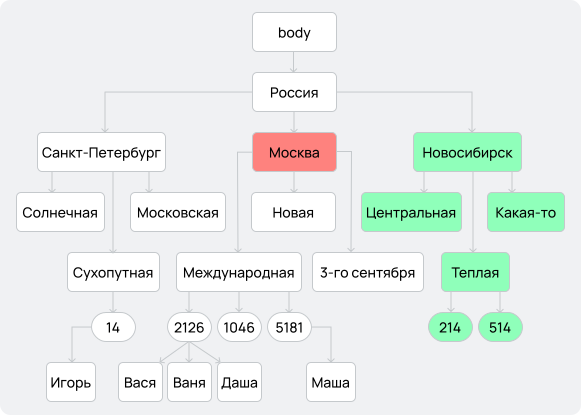
Выбирает все узлы, идущие в тексте документа после текущего, исключая своих потомков: //div[@id='Москва']/ following:*
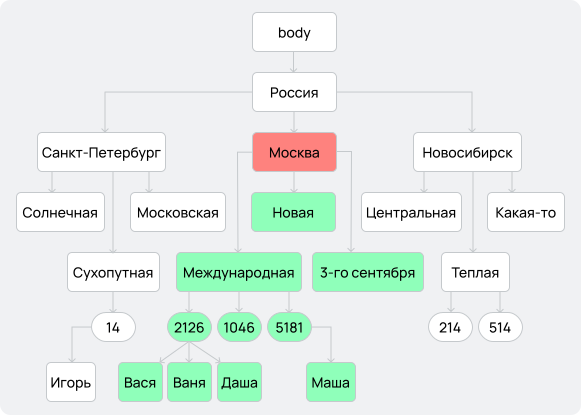
Выбирает дочерние узлы дочерних узлов: //div[@id='Москва']/ descendant:*
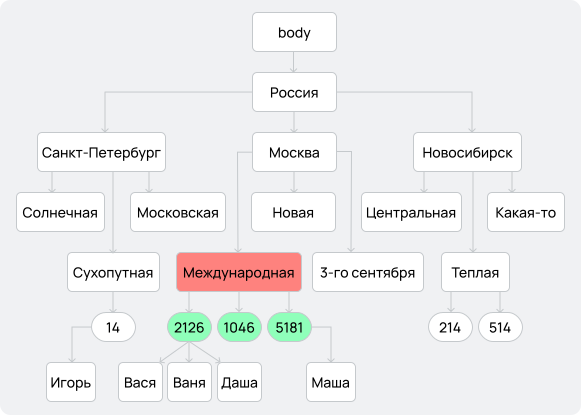
Выбирает элементы-потомки, но только прямые: //div[@id='Международная']/child:*
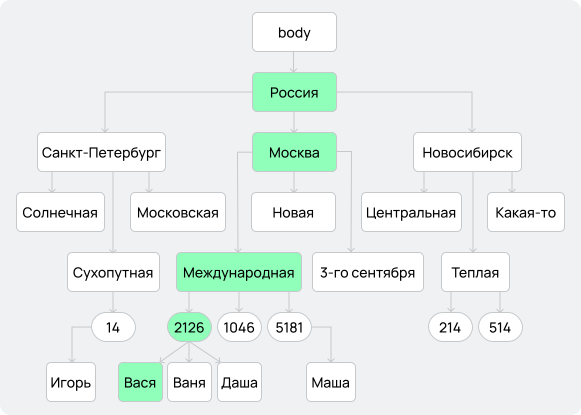
Выбирает не только предков, но и сам узел: //div[@id='Вася']/ancestor-or-self:*
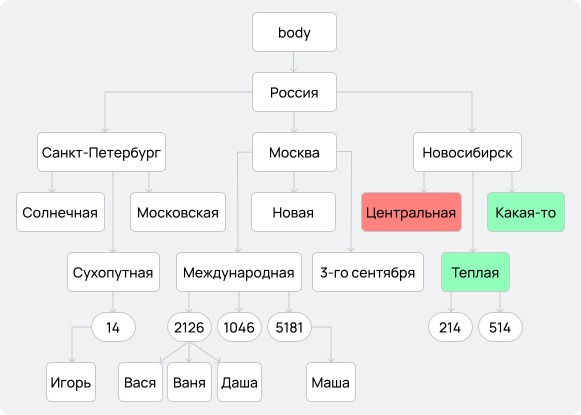
Выбирает узлы, идущие после текущего, но только такого же уровня: //div[@id='Центральная']/ following:*
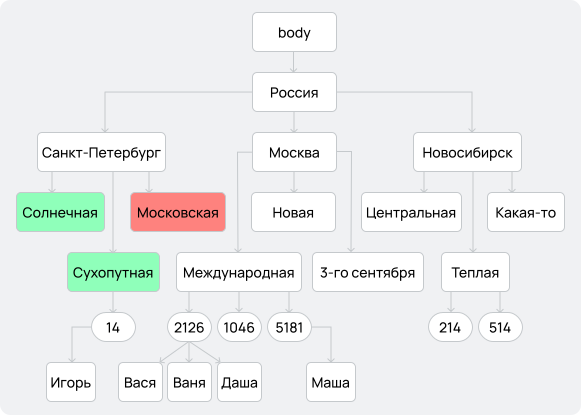
Работают аналогичным образом, как предыдущие две оси, только выбирают узлы-предшественники
XPath is complex but very useful: it allows you to efficiently select the needed set of HTML elements for further processing. But in many situations XPath can be excessive — on modern websites it is often easier to use a CSS selector.
CSS Selectors
CSS selectors select sets of objects by hierarchy or parameters. They are quite universal, support combining conditions and using classes and ids, but they have different syntax from XPath.
/CSS Selectors
Basic Selectors
* – selects any element
div – selects all elements with this tag
#id – selects elements with the specified id
.class — selects elements with the specified class
[name= 'value'] — similar to XPath attributes; selects elements whose attribute has the specified value
:hover — selects elements in a given pseudoclass state (e.g., changes styling when the cursor is over the element)
combinations — you can combine selectors (but remember: elements cannot have multiple ids).
Example: if we need all li elements with class announce_item, the selector is: li.announce_item. You can specify multiple classes along with a pseudoclass, id, and tag name: a#id.c1.c2:visited
Example: if we need all li elements with class announce_item, the selector is: li.announce_item. You can specify multiple classes along with a pseudoclass, id, and tag name: a#id.c1.c2:visited
filtering by attribute values — the attribute goes in square brackets, the value in quotes.
Main filters:
Main filters:
- a[href="mid.ru"] — attribute equals an exact value
- a[href^="mid"] — attribute starts with the specified value (the link mid.ru will be selected)
- a[href|="mid"] — attribute equals or starts with the specified value
- a[href*="mid.ru"] — attribute contains the specified string (position of mid doesn’t matter)
- a[href≅"mid"] — attribute contains the string as one of space-separated values (mid.ru won’t match, but mid russia will)
- a[href$="mid"] — attribute ends with the specified value (mid.ru will not match)
/CSS Selectors
Selectors for Node Navigation
Like XPath, CSS selectors support selecting elements by hierarchy and position in the node tree. There are special filters that allow conditions for elements with the same tag.
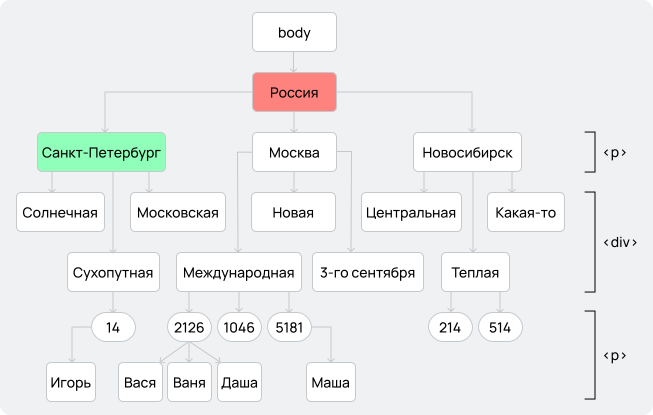
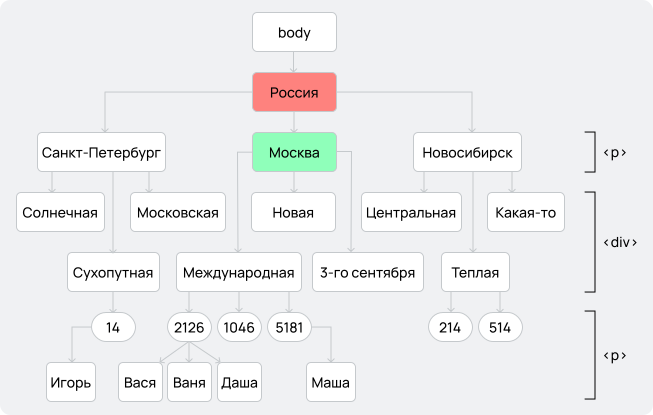
The illustrations below show the result of applying various selectors. Red marks the reference point, green marks all selected elements. Next to each figure (element), its tag is shown.
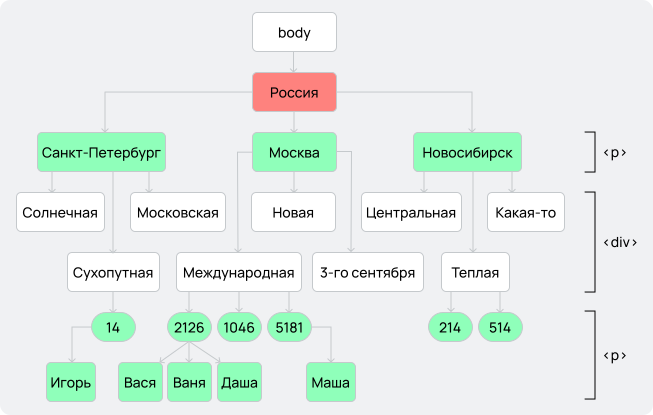
Выберет все теги p, являющиеся дочерними к div: div.Россия p
Выберет первый (p:first-child) / последний (:last-child) потомок родителя: div.Россия p:first_child
Выберет потомка под порядковым номером n: div.Россия p:nth_child (2)
:nth-child позволяет указывать номер потомка формулой, что делает возможным выбор потомков, например, только под чётным номером :nth-child (2n).
:nth-child позволяет указывать номер потомка формулой, что делает возможным выбор потомков, например, только под чётным номером :nth-child (2n).
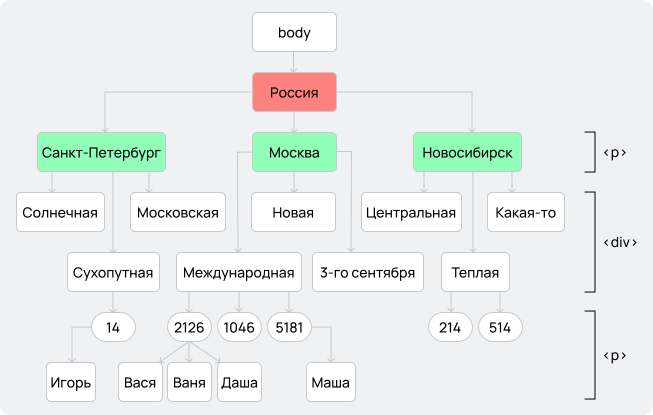
Выберет только прямых дочерних потомков: div.Россия > p
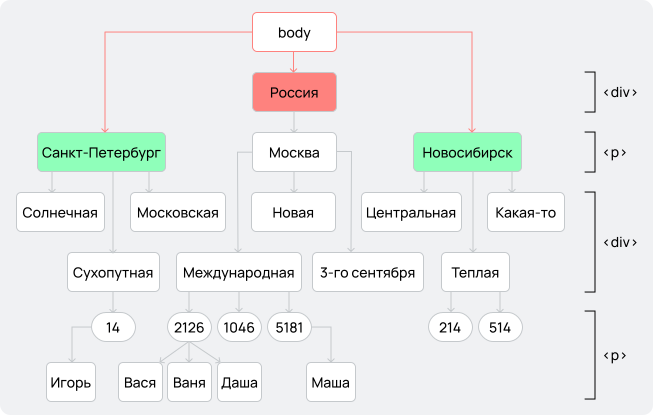
Выберет всех последующих элементов на том же уровне: div.Россия ~ p
/03
Accessing Elements Using the Browser and Third-Party Plugins
Now you can navigate XPath and CSS selector syntax confidently, but a natural question arises: do you really have to write queries manually? No — you can obtain almost-ready XPath or CSS selectors using built-in browser tools or additional software.
Using the browser
Stage 1:
Open the desired page. Visually inspect the site and identify the elements of interest.
Hover the mouse over the target element and right-click.
In the context menu, select View page source / Inspect. An additional panel opens, displaying the page code.
Note that the code corresponding to your element will be highlighted.
Stage 2:
Is merely viewing the element’s code sufficient? Not entirely—because HTML is hierarchical. In practice, this implies specifying the path to the element (i.e., identifying the tags containing the required information).
Right-click the element in the code → select Copy.
You will encounter several options, but two are critical: Copy XPath and Copy selector.
You have now copied the element’s address and can utilize it for scraping.
This process is demonstrated above using the MFA of Russia informational bulletins page. For illustration, the path to the bulletins for October 24−30, 2022, was copied, producing the following XPath:
/html/body/div[1]/div[2]/div[2]/div/div[1]/div[2]/div[1]/ul/li[1]/a
Very similar to the "Vasya" example, right? You can do the same with a CSS selector:
body > div.container.container-ru > div.main.inner > div. page > div > div. page-content.page-content9 > div. page-body > div. news-articles > ul > li: nth-child (1) > a
Both the XPath and CSS selector presented here are absolute paths, i.e., they point to a single specific element. To select all similar elements, you must generalize the query.
Using plugins
You can also generate XPath and CSS selectors using utilities and plugins. SelectorGadget, available as a browser extension, exemplifies such a tool. Clicking an element generates a minimal selector targeting the desired node.
All elements matching the selector will be highlighted in yellow. Further clicks allow exclusion (highlighted in red) or inclusion (highlighted in green) of elements. Holding Shift while clicking aids in selecting elements within other nodes.
SelectorGadget interface
/04
Scraping: Static Pages
Now for the moment of truth: extracting data from web pages. We will use the R programming language and work in the RStudio IDE, so you need to install both R and RStudio. It is recommended to create a project and open a new script.
RStudio IDE start menu
/ STEP 1
Loading libraries
Let’s review basic syntax. We need the rvest library to read HTML code and select data using selectors. If this is your first time opening RStudio, you need to install the libraries — via the Packages menu (Install) using the command install_packages (library_name). Then, for each new session/project, load the library with library (library_name).
/ STEP 2
Creating a variable and retrieving the source code
Assignment is a basic operation — it lets you create variables that store values. Variables can store results of operations, without which programming is impossible. In R, assignment is done using <- (Alt + -). We use assignment to store a link to the website of the Ministry of Foreign Affairs of Russia.
Next, we retrieve the page source code. Usually read_html () is used, but many modern sites with anti-bot protection do not return the needed information. Instead, it is better to use the polite library and the bow function. This approach sends a user identifier (User-agent), which significantly reduces the number of blocked requests.
To read the results, use the scrape () function from the same library — it outputs the desired HTML code so we can proceed to structuring the data.
Creating a variable, sending a request, reading the source code
/ STEP 3
Extracting headlines, links, and news dates
We studied XPath and CSS selectors for a reason — at this stage, using either method, we can extract nodes from the code via html_elements ().
Note the function arguments: first the page HTML, then a selector or XPath. In this example we use a combination of tag name and class: a.announce_link. The function selects the needed elements — the tags containing links and titles of US State Department press releases.
Final step: extract text and links. Use html_text () to get the tag text and html_attr () to extract the value of a given attribute. Do the same for dates, just change the class in html_elements () to .announce_date. There are no links in dates, so no need to extract them. As a result, we get all news headlines with dates and links.
Extracting headlines, links, and dates
/ STEP 4
Creating a table and saving data to a file
Working with raw vectors is inconvenient, so we combine them into a table using data.frame () (a built-in function). We pass the vectors as arguments and assign new names. To save the table for use in other tools and to store your results, use write_csv () and write_xlsx () — to save in .csv and .xlsx formats respectively.
/ STEP 5
Using a loop in scraping
One last question: how do we extract multiple news pages? Many sites limit the number of displayed items, and additional items are split across pagination. Open the site we are using and click the Next button at the bottom. Notice how the URL changes:
https://www.mid.ru/ru/foreign_policy/news/?PAGEN_1=2
Click again — the last digit becomes 3, and so on. The base URL stays the same; only the page identifier changes. We can exploit this: write code that repeats the same scraping procedure, but changes the last part of the URL each time.
This is where loops come in. A loop runs instructions multiple times, and the loop for lets you vary instructions using an iterating variable. Illustration: Vasya needs to put milk, juice, and soda in the fridge. He performs the same actions three times — only the beverage changes:
#transportation program
library(fridge)
for i in c("milk", "juice", "soda") {
  take i
  open fridge
  put i in fridge
  close fridge
}
Here i takes the value of each element in the vector: from milk to soda. We do the same for scraping the MFA website, but our iterations will change the page number in the URL https://www.mid.ru/ru/foreign_policy/news/?PAGEN1=. We set the loop counter from 1 to 10, so we can scrape ten pages.
We create a new variable with the modified URL using paste (), which concatenates strings. Pay attention to the sep — we keep it empty. If we set a space, we get an invalid URL like https://www.mid.ru/ru/foreign_policy/news/?PAGEN1= 2, which does not exist, and the console will show an error.
Using a loop in scraping
The rest of the procedure stays the same — except for table creation. If we create a table inside each iteration, it will overwrite the previous one. We need to combine results from all pages. So before the loop we create an empty table with data. frame (), and inside the loop we append new data using rbind (), which stacks tables row-wise. Then we save the final result using the file-writing functions.
Combining data into a single table
/05
Scraping: Dynamic Pages
Dynamic content presents particular challenges for extraction. Such pages lack static HTML: utilizing JavaScript or other languages, they can alter content during loading, rendering the aforementioned method ineffective.
The rvest package offers session function (not to be confused with session in polite), but its capabilities are limited. Consequently, for dynamic pages, Selenium is most frequently employed., библиотека rvest обладает функцией
Selenium — a tool for automating browser actions. Utilizing code, you transmit commands to a driver controlling the browser: clicking links, navigating to other pages, waiting for loading, etc. Selenium enables handling of dynamic web content.
/ STEP 1
Installing the Java Development Kit
To use Selenium via R, you need additional software — Java Development Kit (JDK). After installing, check whether the system environment variable JAVA_HOME. Do the following:
Open the system environment variables menu (search: "edit the system environment variables")
In the window, choose Environment Variables
Under System variables, there should be JAVA_HOME with a value like:
C:\Program Files\Java\jdk-21 (the last number depends on your JDK version)
If it does not exist, create it using New, specifying the variable name and path.
Selenium also requires a web driver. When installing the R library, drivers are installed automatically, but they may not be the newest versions. So setup varies: you can download a newer driver or use the installed one.
To install a newer Chrome driver, go to the Google Chrome developer site, download the matching version, and unpack it into:
C:\Users\Username\AppData\Local\binman\binman_chromedriver\win32
These folders are system folders, so you need to enable showing hidden items: in File Explorer, click View and check Hidden items. In the unpacked folder, delete the file LICENSE.chromedriver. If you decide not to update the driver, you still need to open the driver folder and delete LICENSE.chromedriver.
/ STEP 2
Creating a browser session
Scraping with Selenium starts by creating a browser session. Specify which browser to use and select the appropriate driver version. The driver variable stores the settings, and you can start the browser with driver driver[["client"]]. Be sure to save it as a variable so you can adjust session parameters and assign Selenium tasks.
First task: navigate to a URL. Use navigate () and provide the US State Department press releases page. A browser window will open with the target site.
Within a session you can do many actions. Key methods include:
-
 session$goBack () — go back
- session$goForward () — go forward
- session$getCurrentUrl () — get the current URL
- session$getPageSource () — return the page source
- session$findElement (using = "id", value = "value") — find elements
Elements can be found:- by full or partial text matches: using = "link text" or using = "partial link text".
- by XPath: using = "xpath".
- by CSS selector: using = "css selector".
- by class or id: using = "id" или using = "class".
Creating a browser session, navigating to a URL
You can apply actions to found elements: hover, click, etc. To do this, save the element into a variable and call the required method. If you found many elements, you cannot click them all at once — select one by index and click it using double square brackets: elems[[1]].clickElement ().
Selecting an element and applying clickElement()
An important method is: elem$sendKeysToElement (list ("some text", "\uE007″)). It sends text to an input and simulates pressing Enter. \uE007 is the Enter key (you can also use "enter"). Another useful action is moving the cursor to an element: elem$mouseMoveToLocation (). You cannot click an element that is outside the visible browser window, so you may need to scroll/hover first. After retrieving the page source, you can return to rvest: locate the needed elements, save them, and build a table.
Web scraping is an important tool for collecting data from open sources. It can be simple or complex — from parsing static pages to handling dynamic content. These skills open many opportunities: from monitoring and analyzing news to building your own databases for research and projects.
Practicum
To practice scraping static pages, extract the list of the latest news from the official MFA of Russia website.
- Go to: https://www.mid.ru/ru/foreign_policy/news/
- Write code that:
- sends a polite request to the server;
- extracts news headlines, links, and dates;
- saves the data into a table.
Now extend the code so that news is collected from the first five pages.
- Examine page URLs (e.g., adding "?PAGEN1=2", "?PAGEN1=3", etc.).
- Implement a for loop that iterates through pages and collects data.
- Save all extracted news into a single table.
Handle JavaScript elements using Selenium.
- Install Java Development Kit (JDK) and the RSelenium library.
- Launch a browser session and go to the US State Department press releases page: https://www.state.gov/press-releases/.
- Find the first news item and click it.
- Get the page source of the new page and try extracting the article title.
Save the collected data in .csv and .xlsx formats.
- Save the all_news table as a CSV file.
- Save the same table as an Excel file.
- Open both files and check that the data is correct.
- Teetor P. R cookbook: Proven recipes for data analysis, statistics, and graphics. — ‘O'Reilly Media, Inc.', 2011.
- Munzert S. et al. Automated data collection with R: A practical guide to web scraping and text mining. — West Sussex: Wiley, 2015. — Т. 1.
- Aydin O. R Web Scraping Quick Start Guide: Techniques and tools to crawl and scrape data from websites. — Packt Publishing Ltd, 2018.
- Bradley A., James R. J. E. Web scraping using R // Advances in Methods and Practices in Psychological Science. — 2019. — Т. 2. — №. 3. — С. 264−270.
- Clark J. et al. XML path language (XPath). https://www.renderx.com/~renderx/portal/Tests/xmlspec/xpath.pdf
- Meyer E. A. CSS: The Definitive Guide: The Definitive Guide. — ‘O'Reilly Media, Inc.', 2006.